Download the Burfy App now!
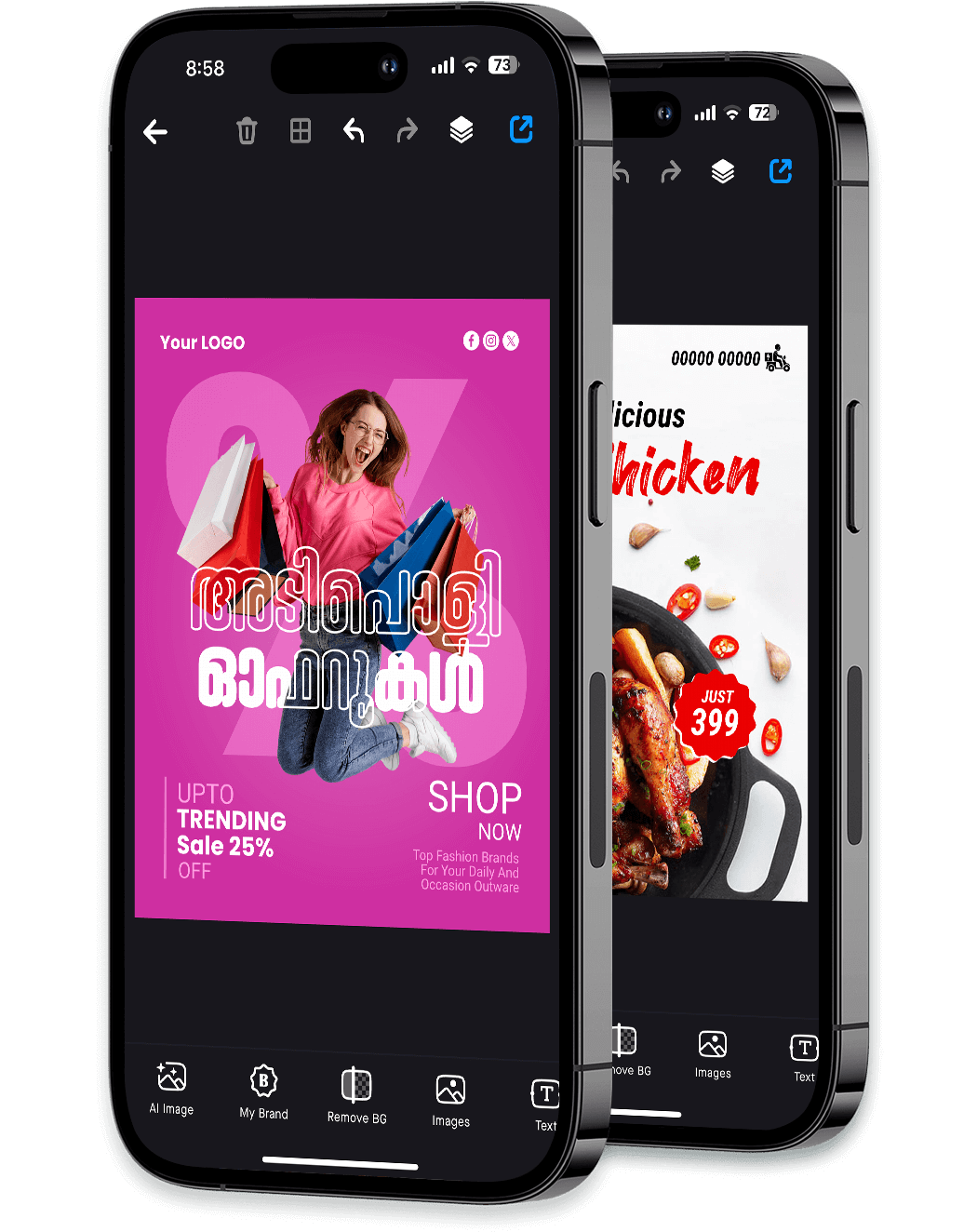
A powerful tool to create shareworthy content in your own language.


| Factor | Recommendation | Rationale | |--------|----------------|------------| | Lighting | Front-facing, diffused light (e.g., window or ring light) | Reduces backlighting and shadows on the face/subject | | Stability | Laptop on a flat surface at eye level | Prevents motion blur and awkward angles | | Lens cleanliness | Microfiber cloth wipe | Built-in lenses accumulate dust and oil, reducing clarity |
Add-Type -AssemblyName System.Windows.Forms # Note: Direct CLI capture requires third-party tool like "WebcamCapture.exe"
With the rise of remote work, online education, and digital identification, the ability to capture still images using a laptop’s integrated webcam has become a fundamental digital skill. Unlike dedicated cameras or smartphones, laptop photography presents unique challenges, including fixed focal length, lower sensor quality, and suboptimal lighting conditions. This paper provides a systematic, platform-agnostic methodology for capturing photos using a laptop, covering hardware preparation, software execution (Windows, macOS, Chrome OS), image optimization, and post-capture management. 1. Introduction Laptop cameras (webcams) are primarily designed for video conferencing, yet users frequently require still images for profiles, documents, or troubleshooting. The core problem is that default operating system settings often obscure the camera’s still-capture function. This paper synthesizes best practices from consumer electronics documentation and human-computer interaction principles to outline a reproducible workflow. 2. Prerequisites: Hardware and Environmental Setup Before software intervention, three physical factors determine output quality:
Unlock the full power of Burfy with our affordable premium plans, thoughtfully priced.
Basic Editing
Unlimited Exports
Limited Font Access
Free Templates
Limited Canvases
Remove Backgrounds from Photos
Remove Watermarks
Custom Canvas Sizes
Generate AI Images
All Premium Templates
All Regional Fonts
Upload Your Brand Kit
Premium Design Elements
Add Your Own Fonts
Remove Backgrounds from Photos
Remove Watermarks
Custom Canvas Sizes
Generate AI Images
All Premium Templates
All Regional Fonts
Upload Your Brand Kit
Premium Design Elements
Add Your Own Fonts
A powerful tool to create shareworthy content in your own language.
| Factor | Recommendation | Rationale | |--------|----------------|------------| | Lighting | Front-facing, diffused light (e.g., window or ring light) | Reduces backlighting and shadows on the face/subject | | Stability | Laptop on a flat surface at eye level | Prevents motion blur and awkward angles | | Lens cleanliness | Microfiber cloth wipe | Built-in lenses accumulate dust and oil, reducing clarity |
Add-Type -AssemblyName System.Windows.Forms # Note: Direct CLI capture requires third-party tool like "WebcamCapture.exe"
With the rise of remote work, online education, and digital identification, the ability to capture still images using a laptop’s integrated webcam has become a fundamental digital skill. Unlike dedicated cameras or smartphones, laptop photography presents unique challenges, including fixed focal length, lower sensor quality, and suboptimal lighting conditions. This paper provides a systematic, platform-agnostic methodology for capturing photos using a laptop, covering hardware preparation, software execution (Windows, macOS, Chrome OS), image optimization, and post-capture management. 1. Introduction Laptop cameras (webcams) are primarily designed for video conferencing, yet users frequently require still images for profiles, documents, or troubleshooting. The core problem is that default operating system settings often obscure the camera’s still-capture function. This paper synthesizes best practices from consumer electronics documentation and human-computer interaction principles to outline a reproducible workflow. 2. Prerequisites: Hardware and Environmental Setup Before software intervention, three physical factors determine output quality: